
1 · Introduction
Welcome to Fishing Calendar
Fishing Calendar is the all-in-one app for anglers who want to plan smarter trips, log every catch, and connect with a global community of fishermen.
At the heart of the app is your daily Efficiency Score — a single number from 0 to 100% that tells you how good today is for fishing at your location. Behind it sits a calendar full of solunar predictions, weather forecasts, tide tables, your personal catch logbook, and a community feed where you can share photos and tips with friends.
This guide walks you through every screen in the app, step by step. Use the table of contents on the left to jump to any topic.
2 · Setup
Getting Started
Step 1: Take the onboarding tour
When you open Fishing Calendar for the first time, the app walks you through its key features with a short series of intro screens. Tap Continue on each one to move forward:
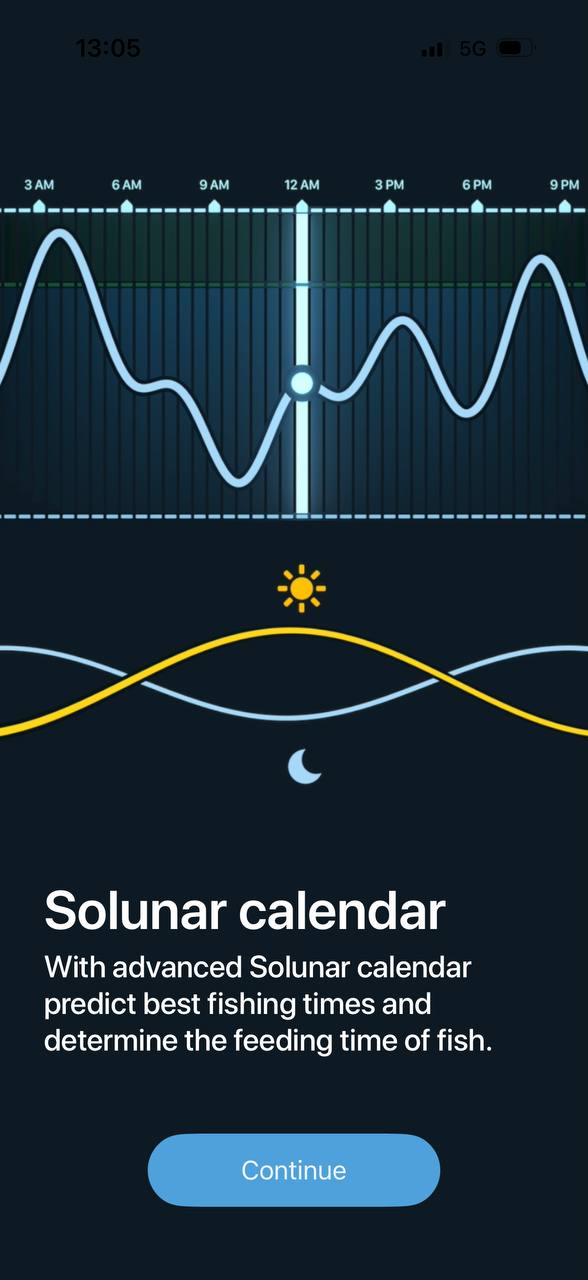
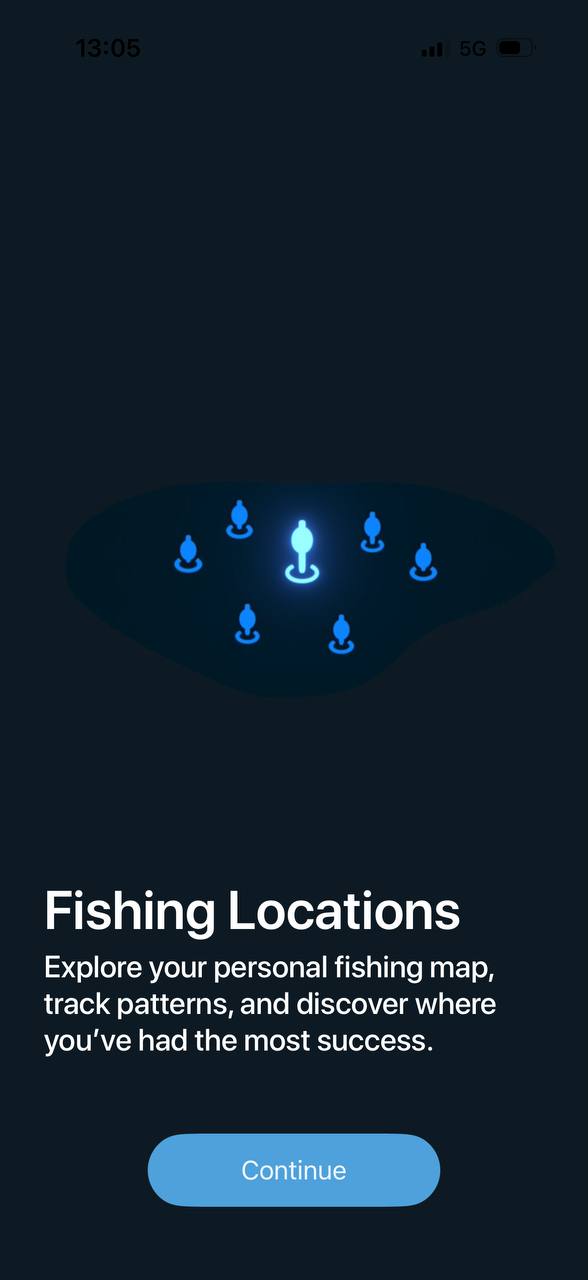
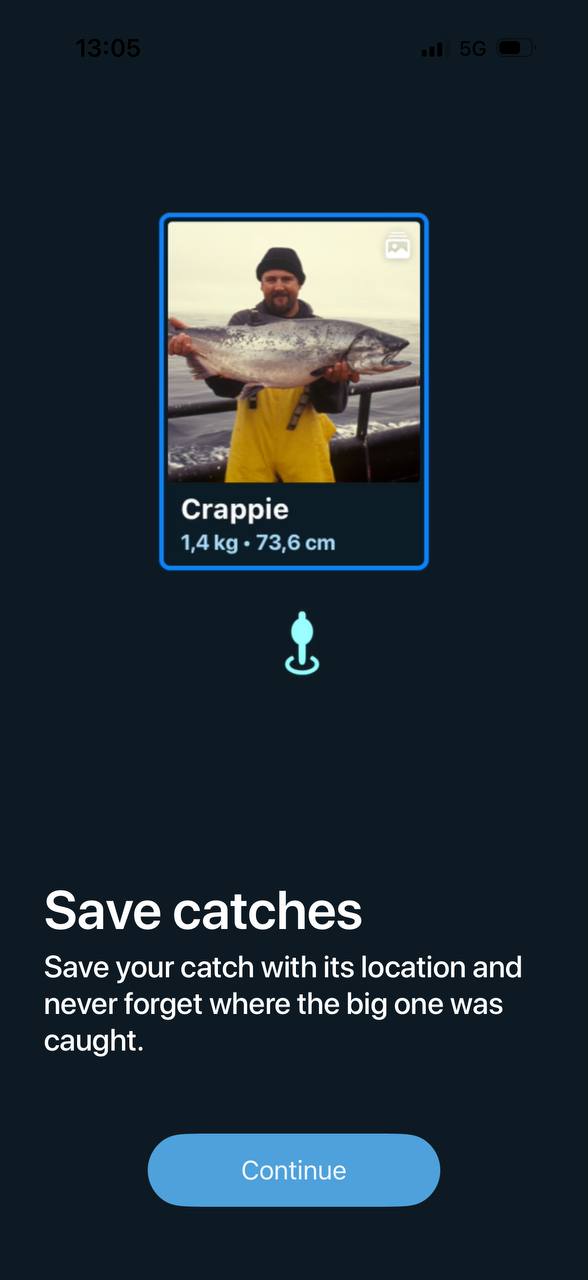
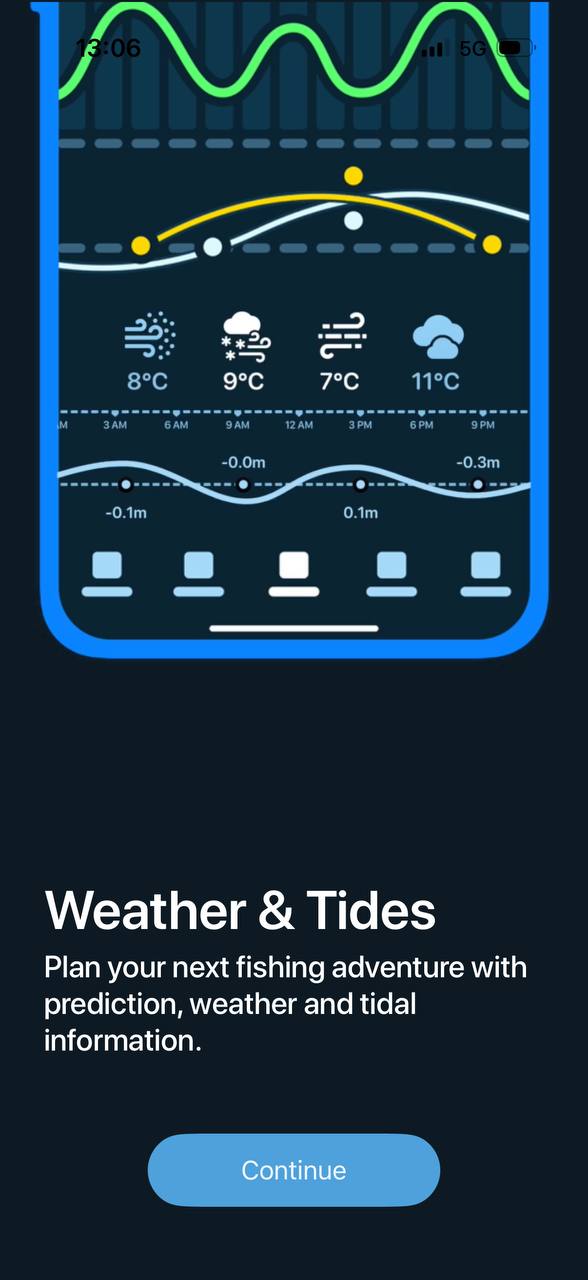
Step 2: Create your account
After the tour, you'll be asked to sign up and personalize your experience. Tap Let's Go! to get started.
Step 3: Allow location access
The Efficiency Score, solunar curves, and weather are all based on where you are. When prompted, allow Fishing Calendar to use your location. You can change this later in your phone's settings.
Step 4: Optional — start your free trial
After the tour, you'll see the Premium offer screen. You can start a free trial to unlock advanced features like extended fish forecasts and unlimited catch logging, or tap Skip to continue with the free version. (See Premium Subscription for details.)
That's it — you're in. The first thing you'll see is the Calendar screen with your Efficiency Score for today.
3 · Home Screen
The Calendar (Home Screen)
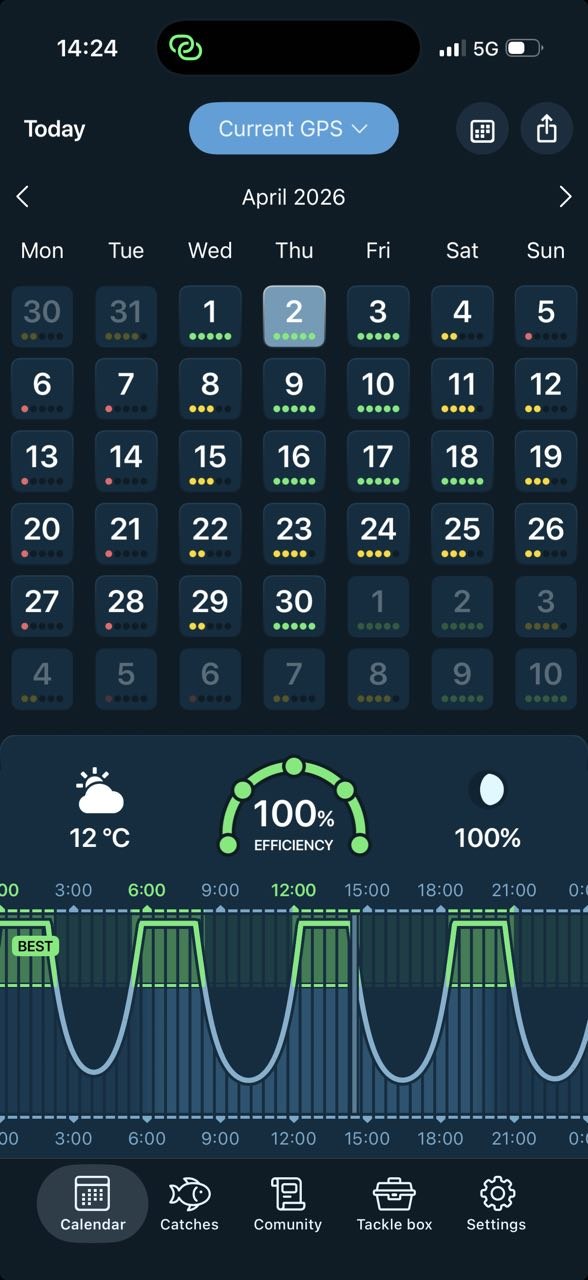
The Calendar tab is your home screen — the first thing you see every time you open the app. It packs the whole month, today's score, and the day's fish activity into one view.
What you'll see, top to bottom
- Today / Location: The top-left "Today" label takes you back to the current day. The blue "Current GPS" button shows your active location — tap it to switch to a saved spot or pick a new one.
- Month grid: Each day shows up to 5 colored dots that summarize the day's fishing potential at a glance (more on this in Efficiency Score).
- Today's widget: A quick row showing the temperature, your Efficiency Score gauge for today, and the current moon phase.
- Fish activity curve: The green and blue wave shows when fish are most likely to feed throughout the day. The green "BEST" bands highlight the peak windows.
Choosing your view
You can switch between a Month view and a Week view in Settings. Most users start with Month view to plan the whole week ahead.
4 · The hero feature
Understanding the Efficiency Score
The Efficiency Score is the single most important number in the app. It's a 0–100% rating of how good today is for fishing at your location, calculated from solunar activity, weather, pressure, tides, moon phase, and seasonal patterns.
You'll see it as a colored gauge in your daily widget — a quick "go / wait" signal before you even leave the house.
The three score bands
The dots under each date
In the month grid, each day shows up to 5 dots. This is a visual shortcut for the day's Efficiency Score:
- 5 green dots — peak day, plan your trip
- 3–4 mixed dots — solid conditions
- 1–2 yellow or red dots — slow day, expect tougher fishing
Tap any day on the calendar to load the full forecast, score, solunar curve, weather, and tide data for that date.
5 · The science behind the score
Solunar, Weather & Tides
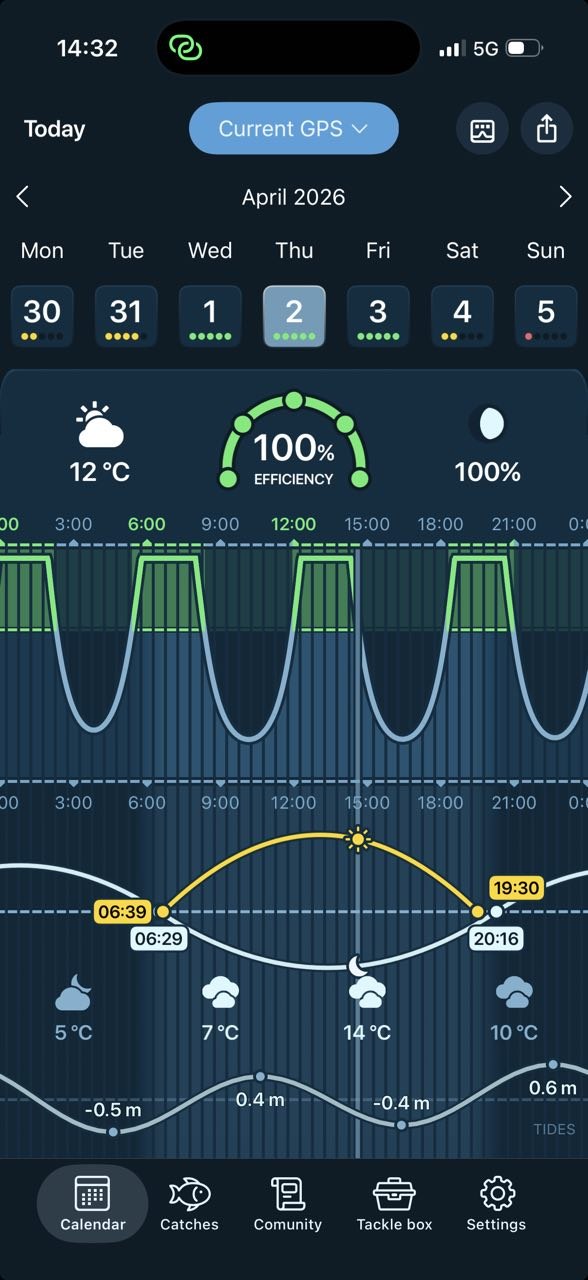
Scroll down on the Calendar screen and you'll find the detailed forecast for the selected day — the data that builds your Efficiency Score.
Solunar (the green & blue curve)
Solunar theory says fish feed most actively at certain times of day based on the positions of the sun and moon. Fishing Calendar shows this as a wave across the 24-hour timeline:
- Green peaks (BEST): Major feeding windows — typically 2 per day, lasting about 2 hours each.
- Smaller bumps: Minor windows — shorter periods of increased activity.
Sunrise & sunset (the yellow & white curve)
The yellow arc shows the sun's path, the white arc shows the moon's. The numbers in white boxes are your sunrise and sunset times, plus moonrise and moonset for the day.
Weather strip
Below the sun/moon curve you'll find weather icons and temperatures at different times of day — useful for picking the warmest, calmest window.
Tide chart
If you're fishing saltwater, the bottom curve shows tide height across the day with high and low tide values. Many species feed best during a moving tide, so look for the rising or falling sections rather than slack water.
6 · Your personal logbook
Catches (Your Logbook)
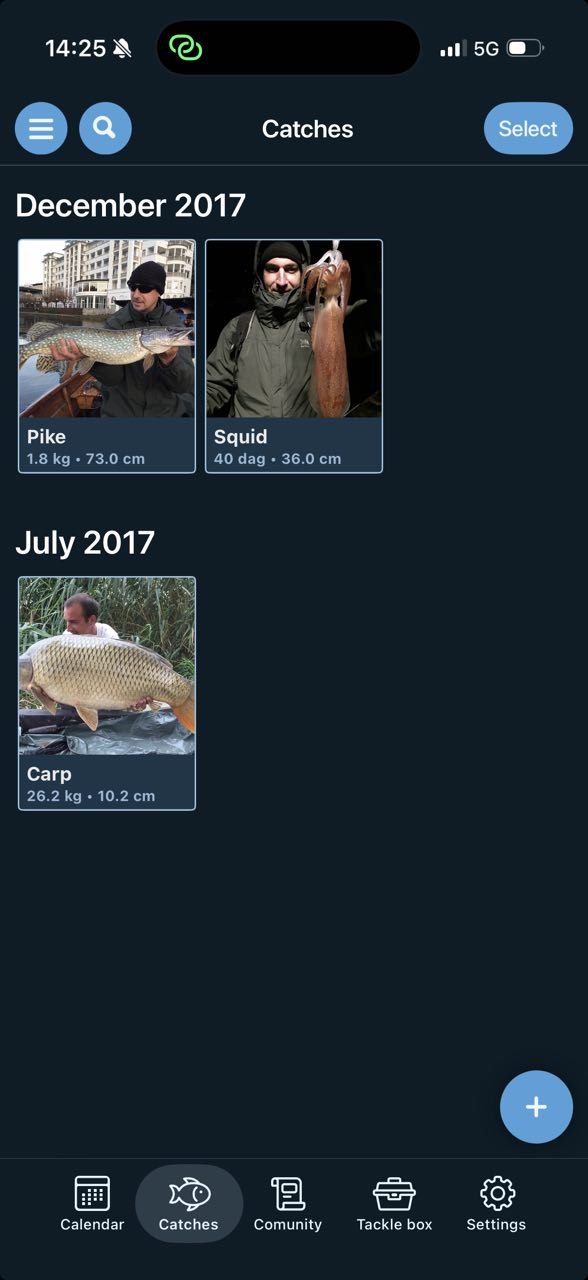
The Catches tab is your private fishing diary. Every fish you log here is saved with a photo, measurements, location, and the conditions that day — building a personal database you can look back on for years.
Adding a new catch
- Open the Catches tab.
- Tap the blue + button in the bottom-right corner.
- Add a photo of your fish (camera or gallery).
- Fill in the species, weight, length, location, and any notes about your gear, bait, or technique.
- Save — the catch will automatically be tagged with the date, weather, and solunar data for that moment.
Browsing your catches
Catches are grouped by month and year, newest first. Tap any catch to see the full details, edit, or share it. Use the search icon at the top to filter by species or location, and the Select button to pick multiple catches for bulk actions.
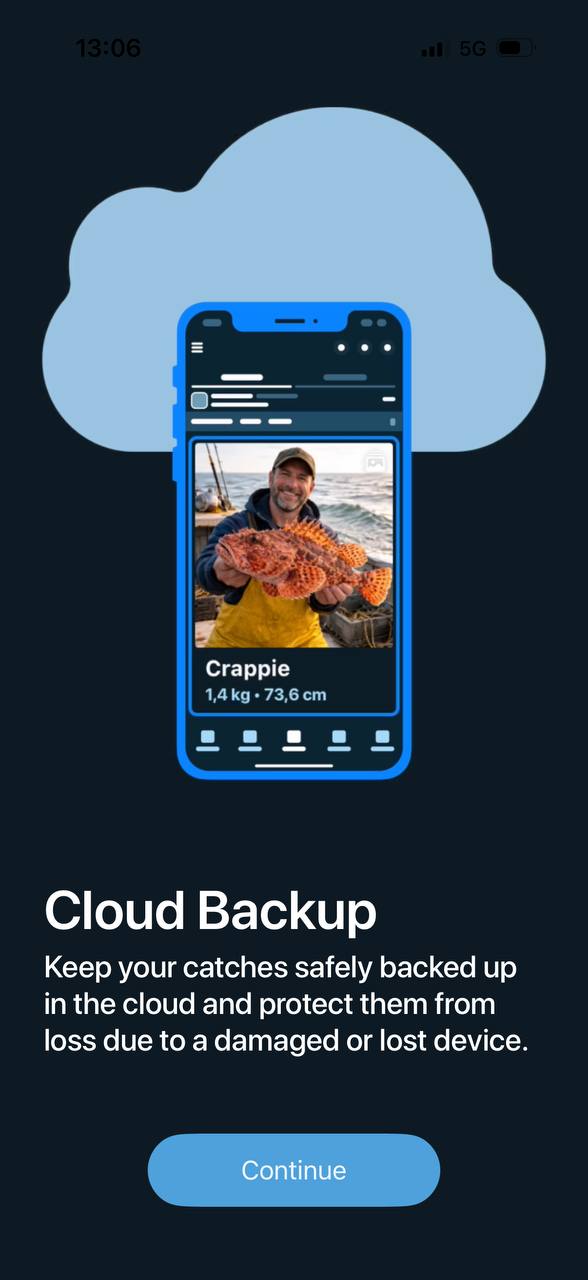
Cloud backup
Your catches are safely backed up to the cloud and tied to your account — so if you lose or replace your phone, every catch you've ever logged comes back when you sign in. (Cloud backup is included with all accounts.)
7 · Connect with anglers
Community & Friends
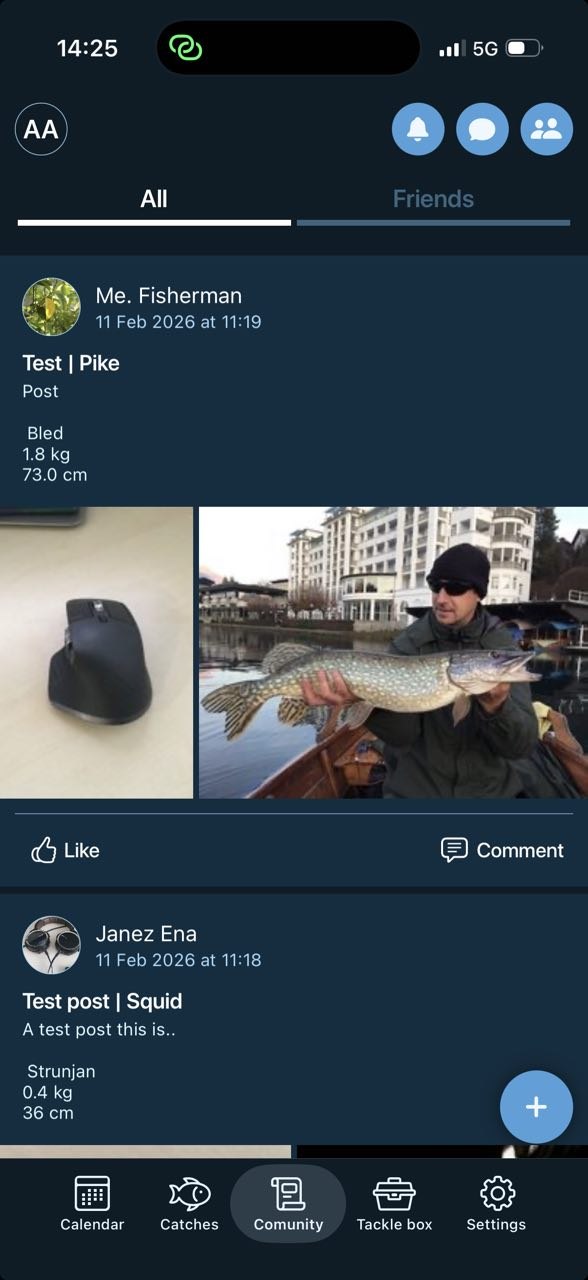
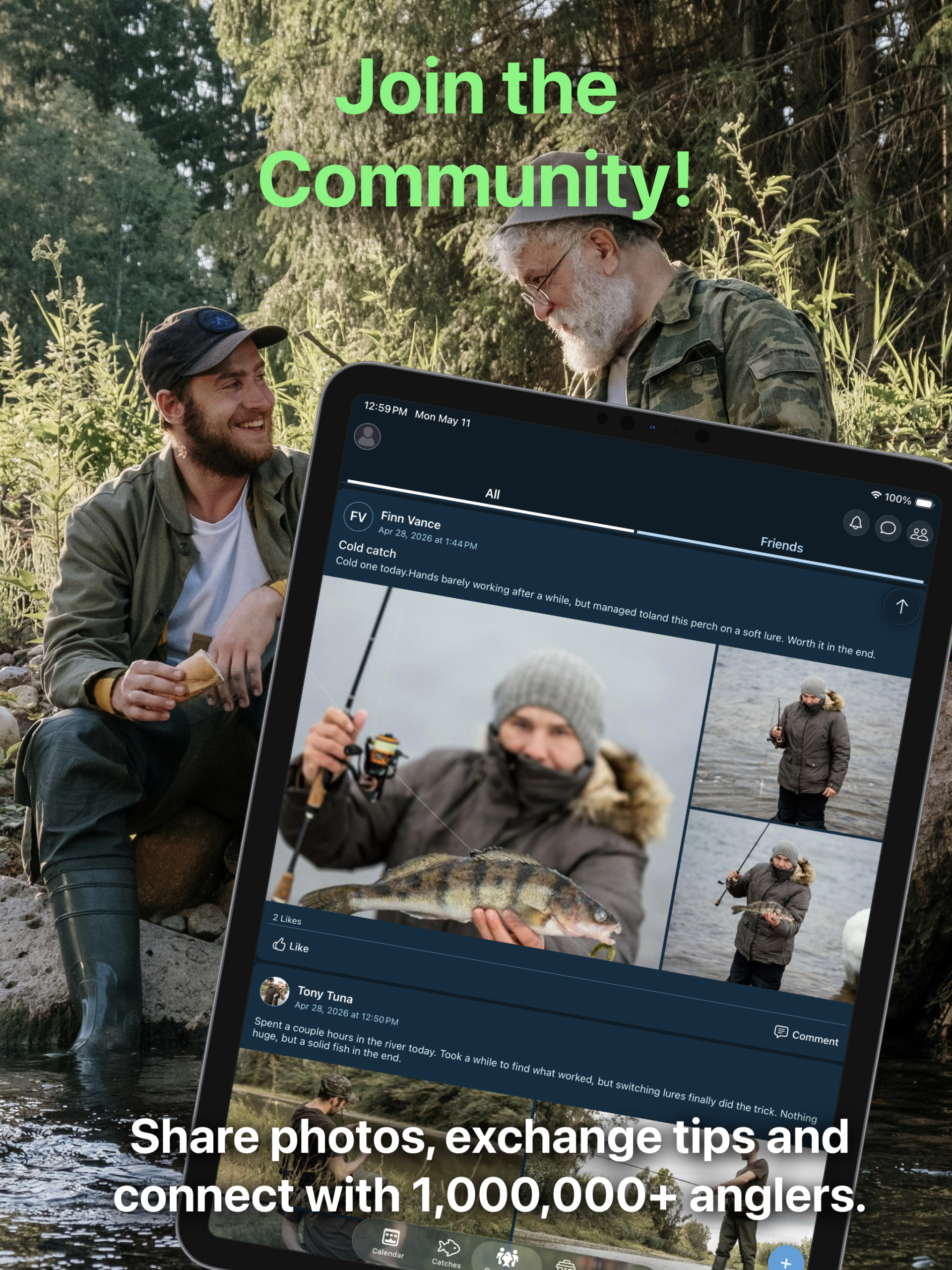
The Community tab is where Fishing Calendar comes alive socially. Share your catches publicly, follow other anglers, send friend requests, and chat with fishing buddies — all in one place.
The feed: All vs Friends
Two tabs at the top control what you see:
- All: Public catches from anglers all over the world.
- Friends: Just posts from people you've added as friends.
Posting a catch to the community
- Tap the + button in the bottom-right of the Community feed.
- Choose one of your saved catches (or create a new one).
- Add a title, description, and any extra photos.
- Tap post — your catch goes live on the feed.
Like & comment
Tap Like to give an angler a thumbs-up, or Comment to ask about their bait, location, or gear. Comments are a great way to learn from people fishing the same waters as you.
The header icons
In the top-right of the Community tab you'll see three round blue icons:
- 🔔 Bell — Notifications: See who liked or commented on your posts.
- 💬 Chat bubble — Messages: Direct messages with your friends.
- 👥 People — Friends: Manage friend requests, search for users, and view your friend list.
Adding a friend
- Tap the people icon in the top-right.
- Search for a username or tap on a profile in the feed.
- Tap Send Friend Request.
- Once they accept, you'll be able to message them and see their posts in your Friends feed.
8 · On-the-water tools
Tackle Box
The Tackle Box tab is your collection of practical tools you can use right at the water. Four utilities in one place:
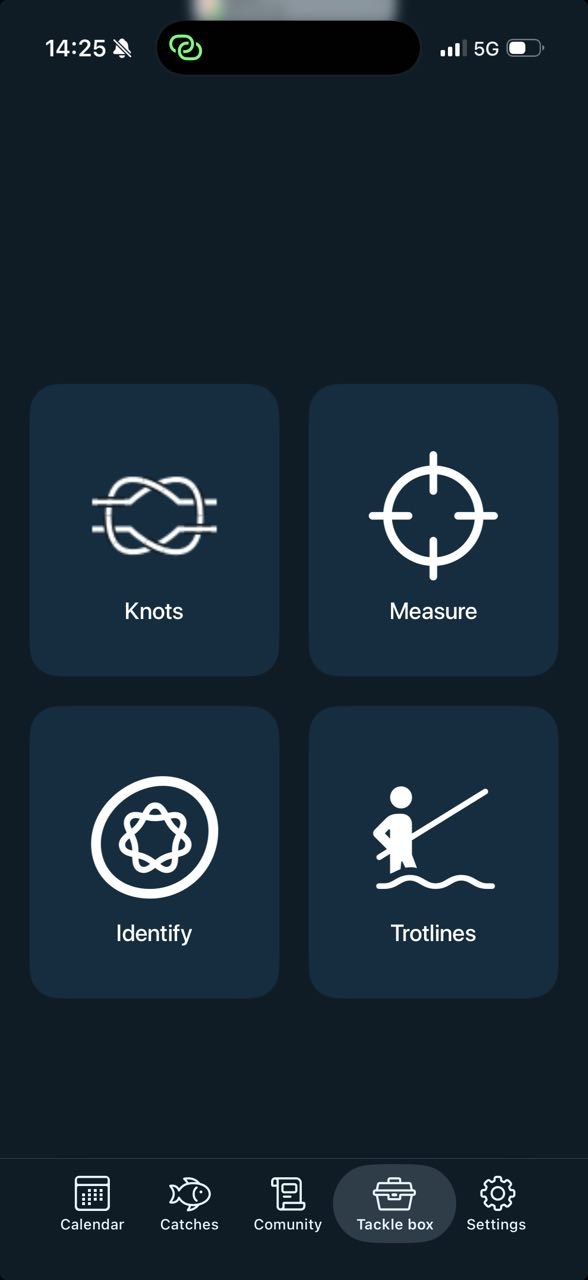
Knots
Step-by-step instructions for the most common fishing knots — from Palomar to Improved Clinch. Useful when you're tying on a new lure in the boat.
Measure
Quickly check the length of your catch using your phone's camera as a reference. Great for catch-and-release or regulated species.
Identify
Not sure what you caught? Snap a photo and the app will help you identify the species.
Trotlines
Plan and manage trotlines — track baited hooks across a long line and remember where each is set.
9 · Make it yours
Settings & Profile
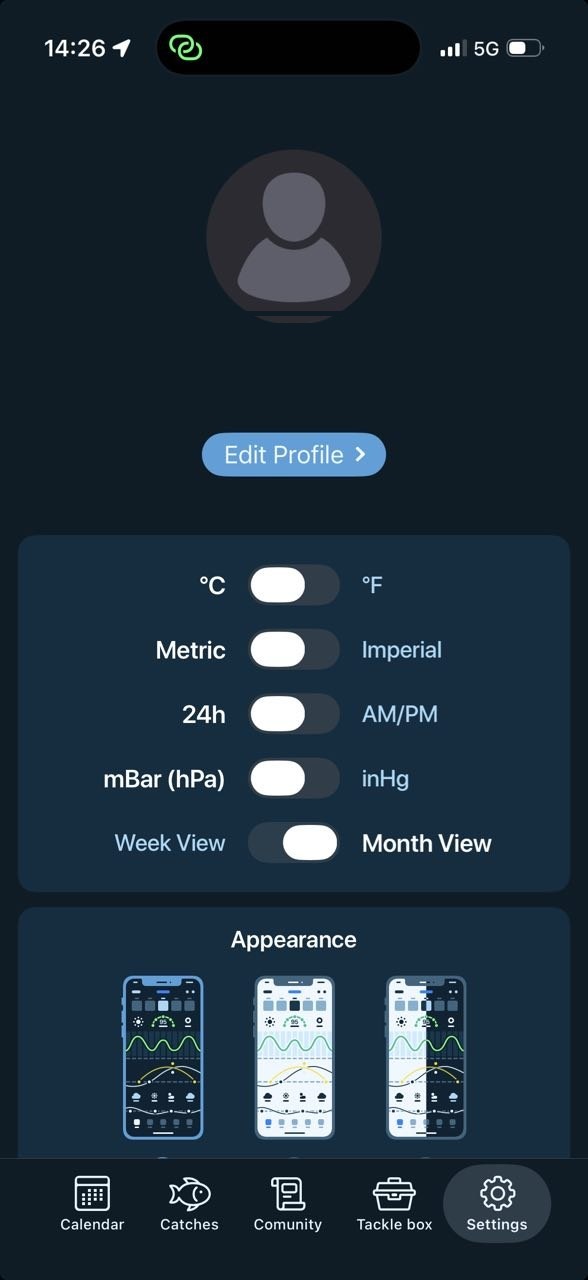
The Settings tab is where you edit your profile, change measurement units, switch the calendar view, and customize the app's appearance.
Your profile
At the top you'll see your username, email, and a profile picture. Tap Edit Profile to change your display name, photo, or other personal details. Your profile picture is what other anglers see next to your posts in the Community feed.
Units & format toggles
- °C ↔ °F: Switch between Celsius and Fahrenheit for temperature.
- Metric ↔ Imperial: Switch between kilograms/centimeters and pounds/inches for fish measurements.
- 24h ↔ AM/PM: Time format throughout the app.
- mBar (hPa) ↔ inHg: Atmospheric pressure unit.
- Week View ↔ Month View: Default layout of the Calendar tab.
Appearance
Pick the theme you like best — a dark theme (default), a light theme, or a mixed theme. The choice is saved across sessions.
10 · Premium
Premium Subscription
Fishing Calendar offers a free tier that covers the basics, plus a Premium subscription that unlocks the full power of the app. Premium starts with a free trial — try it risk-free before you're charged.
What Premium includes
- Fish Forecast: Daily strike activity, feeding patterns, and extended outlook
- Solunar Forecast: Full major/minor windows for every day
- Unlimited Catches: Log as many catches as you want
- Weather Forecast: Multi-day weather predictions
- Tide Prediction: Detailed tide tables and timing
How to subscribe
- Tap the Premium offer when prompted, or open it from Settings.
- Choose Yearly (best value) or Monthly.
- Tap Start your free trial and confirm with your App Store or Google Play account.
- You won't be charged until your trial ends. You can cancel any time before then.
Restoring a purchase
If you're already a Premium subscriber and you've reinstalled the app or changed devices, tap Restore purchase at the top of the Premium screen and sign in with the same App Store / Google Play account you originally used.
Cancelling
How you cancel depends on whether you subscribed through the App Store or Google Play:
- iPhone (iOS): Please use this link to cancel your subscription: reportaproblem.apple.com
- Android: Just send us your order ID and we'll cancel it for you. Email info@fishingcalendarapp.com with your order ID and we'll take care of it.
You'll keep Premium access until the end of the billing period you've already paid for.
11 · Common issues
Troubleshooting
My location is wrong / the Efficiency Score doesn't match where I am
Open your phone's Settings → Privacy → Location Services and make sure Fishing Calendar has permission to use your location While Using the App (or Always). Then reopen the app and tap the location button at the top of the Calendar to refresh.
I'm not getting notifications
Check that notifications are enabled in two places:
- Your phone's Settings → Notifications → Fishing Calendar → Allow Notifications
- Inside the app, under Settings → Notifications
My score isn't updating
The Efficiency Score depends on a live weather feed. If your phone has been offline, pull down on the Calendar screen to refresh. If it still doesn't update, try closing and reopening the app.
I can't find my old catches after reinstalling
Make sure you're signed in with the same account you used originally. Your catches are stored in the cloud and tied to your account, not your device. If they still don't appear, contact us and we'll help recover them.
The app crashes or freezes
Try the standard fixes: close the app fully, restart your phone, and make sure you're on the latest version from the App Store or Google Play. If it keeps happening, email us with your phone model and OS version so we can investigate.
I subscribed but Premium features aren't unlocked
Open the Premium screen and tap Restore purchase at the top. Make sure you're signed in with the same App Store / Google Play account you used to subscribe.
Need a hand? We're here.
Can't find what you're looking for? Send us a message and a real person from our team will get back to you.
Email Support